independent guide · account · checked 22 October 2026
Roobet login: username or email, Google, Metamask and 2FA
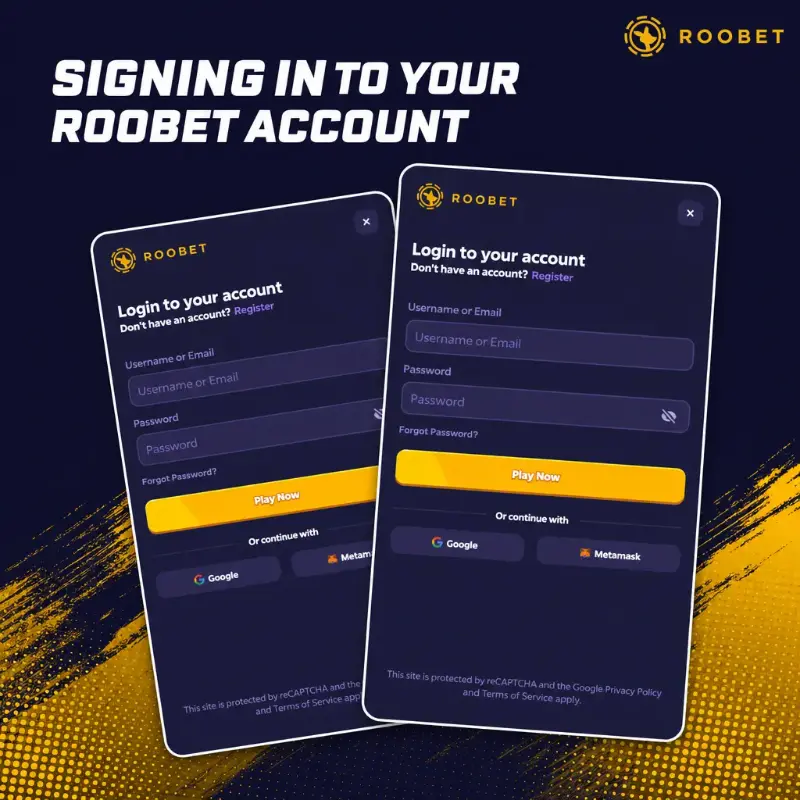
The login window has two fields, Username or Email and Password, a Play Now button and a Forgot Password? link; Google and Metamask sign the user in without a password. Two-factor authentication through Authy or Google Authenticator adds a 30-second code and comes with a recovery key. The same login opens the casino, the sportsbook, the cashier and the live chat, and the chapter on registration covers the account itself.
Checked on





Sign-in options
The login window, reached through the Login button in the header, accepts either the username or the email address together with the password. Under the form sit the buttons "Or continue with Google" and Metamask, which authenticate through those services. The site keeps a reCAPTCHA check on its authentication forms.
| Method | What is entered | Note |
|---|---|---|
| Username and password | the username chosen at registration and the password | 2FA code follows if enabled |
| Email and password | the email address on the account and the password | same field as the username |
| the Google account chosen in the pop-up | no password on the casino side | |
| Metamask | a signature from the Metamask wallet | the wallet extension or app has to be unlocked |
An account opened through Google or Metamask keeps that method as its sign-in; the Help Center lists articles on changing the username and the email, so both can be edited later through support. The operator does not publish a session length or an automatic logout timer.
The Roobet guide opens with an overview of the catalogue, the cashier, the rewards and the licence; this chapter goes into one part of it in detail.
How to log in
The steps below follow the window as it appeared on 22 October 2026 on desktop and on the mobile site, where the Login button sits in the header next to Register.
- Press Login in the header of the casino's home page.
- Enter the username or the email address in the first field and the password in the second.
- Press Play Now.
- Enter the 30-second code from the authenticator app when 2FA is enabled.
Google and Metamask replace steps 2 and 3 with the service's own window. A forgotten password is reset through the Forgot Password? link under the form, which sends a message to the email on the account.
Two-factor authentication
The Help Center article 2FA Guide recommends Authy and also names Google Authenticator. The feature is switched on in Account Security; once active, every login asks for the current code, and the recovery key shown at setup is the way to disable 2FA if the phone is lost.
- Install Authy or Google Authenticator on the phone.
- Open Account Security on the site and move the slider Enable Two-Factor Authentication.
- Scan the QR code with the app, or type the secret shown next to it.
- Enter the 30-second code from the app to confirm.
- Save the recovery key that the site shows; it removes 2FA without the app.
| Parameter | Value |
|---|---|
| Method | TOTP code from an authenticator app |
| Apps named | Authy (recommended), Google Authenticator |
| Code validity | 30 seconds |
| Recovery | secret recovery key issued at setup |
| Required for | the site chat; withdrawal confirmation when enabled |
| SMS or email codes | not offered |
Forgot Password and lost 2FA
Two recovery paths exist. A forgotten password goes through the Forgot Password? link in the login window and the email on file. A lost authenticator is handled with the recovery key from setup; without the key, the case goes to live support, which may ask for Level 2 documents before restoring access.
- password: Forgot Password? link, then the reset message sent to the account email;
- 2FA: enter the recovery key to switch the feature off, then set it up again on the new device;
- neither key nor app: write to support through the chat or support@roobet.com and expect a document check;
- email change: a Help Center article covers it, and the change runs through support.
The chapter on support lists the 24/7 chat route and the email addresses; the chapter on registration describes the Level 2 documents.
Chat, rain and tips after login
The site chat has two entry conditions set out in the Help Center article Chat Requirements: two-factor authentication must be on, and the account must have $500 wagered over its lifetime. Chat rains and tips add their own conditions.
| Feature | Condition | Source |
|---|---|---|
| Site chat | 2FA enabled and $500 lifetime wager | help article Chat Requirements |
| Chat rain | $250 wagered in the previous 48 hours; up to $2,000 per rain, split evenly | Bonus Policy §6–7 |
| Tips | Level 2 verification; daily cap of 10% of the rank's wagering requirement | help article Sending Tips |
| Live support | any logged-in account: arrow next to the username, then Live Support | help article on Live Support |
Rewards and the Vault open from the same account menu; the chapter on the bonus mechanics gives the claim schedule in UTC.
Account security facts
The security tools the operator documents are the authenticator 2FA, reCAPTCHA on forms and a vulnerability disclosure programme at bugcrowd.com/roobet-vdp. The Terms add rules that affect access: one account per person, a 6-month inactivity clause and a document request at any time.
- 2FA on login, with a recovery key;
- reCAPTCHA on the registration and login forms;
- bug reports through bugcrowd.com/roobet-vdp;
- an account with no login for 6 months becomes inactive (Terms §7);
- documents can be requested at any time, with withdrawals held until the check (Terms §4.9, §10.5);
- a 24-hour time-out and self-exclusion from 1 day to permanent, described in the chapter on responsible gambling.
Login problems and fixes
The cases below combine the Help Center guidance with the Terms. Access can also depend on the reader's location under the Terms; the chapter on the licence and legal status explains what §3.5 of the Terms sets out.
| Issue | Cause | Fix |
|---|---|---|
| Code refused | the 30-second code expired or the phone clock drifted | wait for the next code; check the time setting of the phone |
| No access to the authenticator | new phone or deleted app | enter the recovery key, then set 2FA up again |
| Password not accepted | wrong field or changed password | use Forgot Password? and the account email |
| Chat closed | 2FA off or less than $500 wagered | enable 2FA; the wager condition is lifetime |
| Account inactive | no login for 6 months | contact live support to reactivate |
Login takes a username or email and a password; Google and Metamask are the alternatives, and 2FA adds a 30-second code.
Frequently asked questions
Short answers on sign-in, 2FA and recovery.
What is entered to log in?
The username or the email address and the password, then Play Now. Google and Metamask sign in without a password, and 2FA adds a 30-second code when enabled.
Which authenticator apps work?
The Help Center recommends Authy and names Google Authenticator; any app that produces time-based codes fits the QR code or the secret shown in Account Security.
What happens if the phone with the authenticator is lost?
The recovery key issued at setup disables 2FA. Without the key, live support handles the case and may ask for Level 2 documents.
Why is the chat closed?
The chat needs 2FA enabled and $500 wagered over the lifetime of the account, under the Help Center article Chat Requirements.
Is there a login app?
No. Login runs in the browser on desktop and on the mobile site; the chapter on the mobile site describes the home-screen shortcut.